Use a roster to agree on creators and content before launch. Once the content is published, use a campaign to measure the TikTok videos or Instagram Reels together.
Prepare creators with a roster
- Open Campaigns > Rosters and choose Add Roster.
- Enter a roster name.
- Add TikTok usernames or account links, one per line.
- Choose Submit.
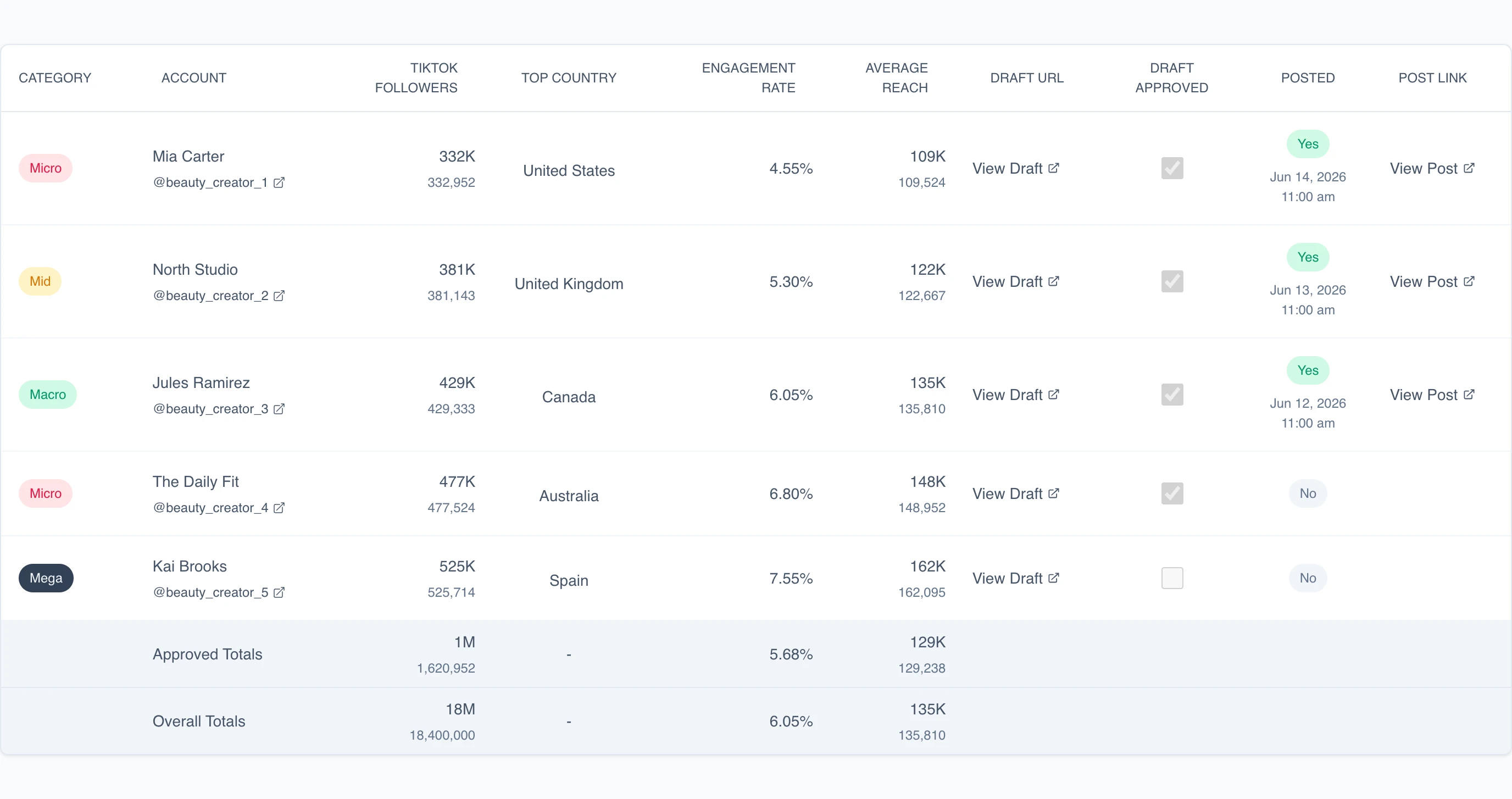
The roster keeps the information needed to move proposed creators toward launch, including categories, draft links, client approval, posting status, posting dates, and final post links.
Choose Share for Approval to create a link for a client or teammate. The shared roster lets them review the proposed creators and mark drafts as approved without signing in to your Tokchart account. Read Share a roster for approval before sending the link.
Once the creators and content are approved, choose Turn into Campaign to continue with performance tracking.
Track a campaign
- Open TikTok Campaigns or Instagram Campaigns and add a campaign.
- Give the campaign a name and add its dates where relevant.
- Paste the TikTok video or Instagram Reel links, one per line.
- Choose Save.
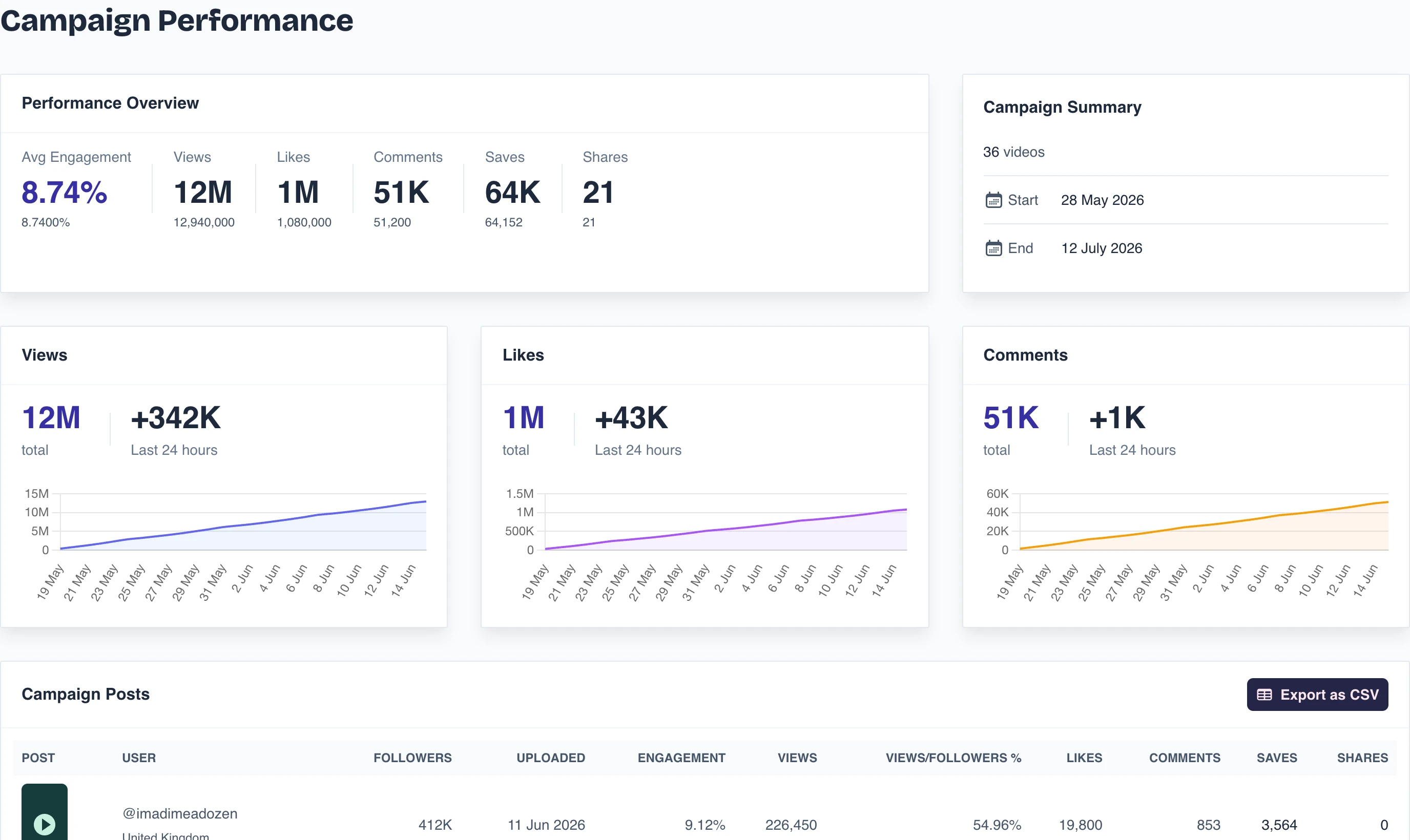
The campaign view keeps the posts and their results together as performance changes over time. Use the totals, graphs, and post table to report on the campaign as a whole or inspect an individual post.
Organize campaigns into folders
Choose New folder on your TikTok or Instagram campaigns page and enter a client or service name. Open a campaign's menu to add it to one or more folders, or select several campaigns and choose Add to folder. You can also select folders when creating or editing a campaign.
Choose a folder to see its campaigns. All campaigns includes every report, and No folder shows campaigns that do not belong to a folder. Search by campaign name, song title, or artist within the current folder, and switch between table and grid views using the view buttons.
Use Folder settings to rename or delete a folder. Deleting a folder keeps its campaigns and reports. TikTok and Instagram folders are separate.
Share the results
Open a campaign and choose Share to create a public report link. You can also export the report as a PDF. Read Export, download, or share analytics and reports for the available sharing options.